Getting support
Use Report a bug whenever you need help with GrantKeeper, including when you are stuck or unsure whether something is wrong. You do not need to diagnose the problem or finish troubleshooting before contacting the team.
Open the reporting tool
When signed in, select Report a bug in the app sidebar. On mobile, open the navigation menu first. On these documentation pages, use the bug button at the bottom right. You can also press Alt+Shift+B.
If possible, open the tool on the page where you need help so the report includes the relevant page. For a question about the guide, open it from the documentation page.
Describe what you need
- Choose Whole view to capture the visible page, drag an area and choose Use selection, or choose Without screenshot.
- In What happened?, describe what you were trying to do, what happened or where you are stuck, and what you expected. An error message or an entry, document or table ID can help.
- Review the image before sending. Use Retake, Remove or Attach image if needed. Screenshots are optional and may contain visible organisation information.
- Select Send report. Wait for Report sent and keep the reference for any follow-up.
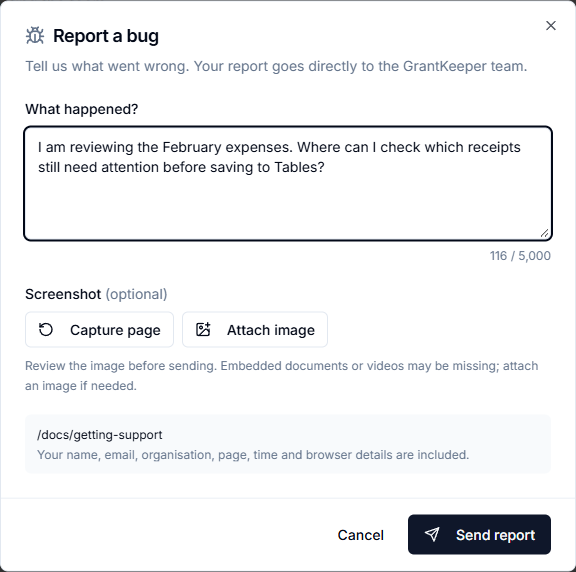
Your name, email, organisation, page, time and browser details are included with the report. Whole view captures the visible page, not the entire scrollable page or your desktop. Embedded documents or videos may be missing; you can attach a PNG, JPEG or WebP image under 3 MB, or send without an image.
If you cannot send a report
If the connection is interrupted, keep the dialog open and use Check status when offered. Follow any retry message; a pending report is not a confirmed send. Closing the dialog or refreshing the page can lose the draft.
If you cannot sign in, open the tool or send through it, use Contact support or email support@grantkeeper.com. Include the report reference if you have one.