Exports
Exports create files for review, grant submission, audit, or internal reporting.
Excel workbook exports size columns from the exported data, including headers. This reduces clipped values in normal reports while keeping very long text columns capped.
Reading Expense Exports
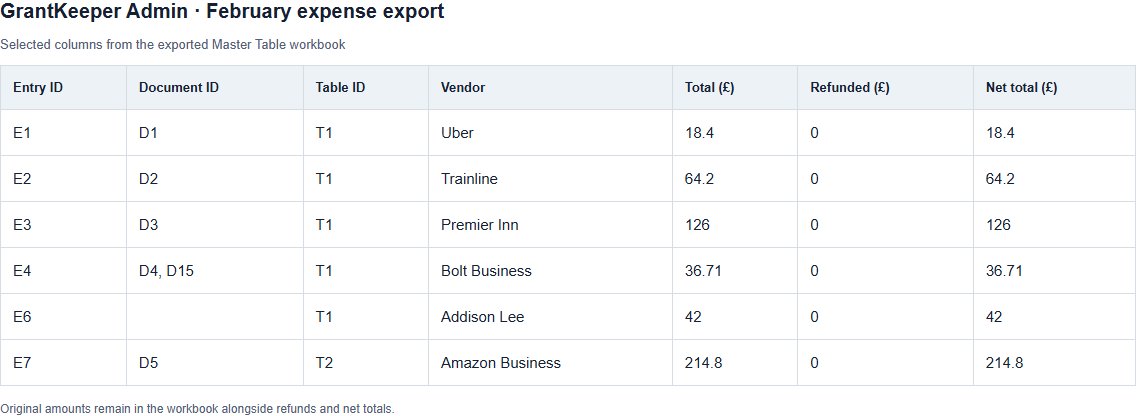
Table, multi-table and Master Table expense workbooks contain record IDs that let you trace a row back to GrantKeeper:
| Column | How to use it |
|---|---|
| Entry ID | Find the expense, for example E42. This is not the workbook row number. |
| Document ID | Find its evidence, for example D18. A cell can contain several receipt and conversion-evidence IDs. |
| Table ID | Find the source Table, for example T3. |
Use these IDs in search or when asking for help. They remain tied to the records when export filters or row order change. Older records without a sequential ID can have blank ID cells.
Original cost columns remain in the workbook. Refunded (£) and Refunded ex-VAT (£) show the credit on each VAT basis; Net total (£) and Net total ex-VAT (£) show the remaining cost. For example, a £100 charge with a £30 refund has a £70 net total including VAT. Review the appropriate VAT basis for your claim.
A full refund matched within an unsaved batch withholds both rows before they reach the Table. Refunds recorded against already saved entries retain the entry and its refund information. See Money In Review.
Choose the available table, grant, purchaser and date filters for the export you are using, and check preview counts where shown. Date ranges include the end date. Not every export offers every filter. Timesheet workbooks have their own hours and rate layout; these expense columns do not apply to them.
Export One Table
Use this when a single grant/project table is ready.
The export can include entry data and evidence files linked to entries.
Export Multiple Tables
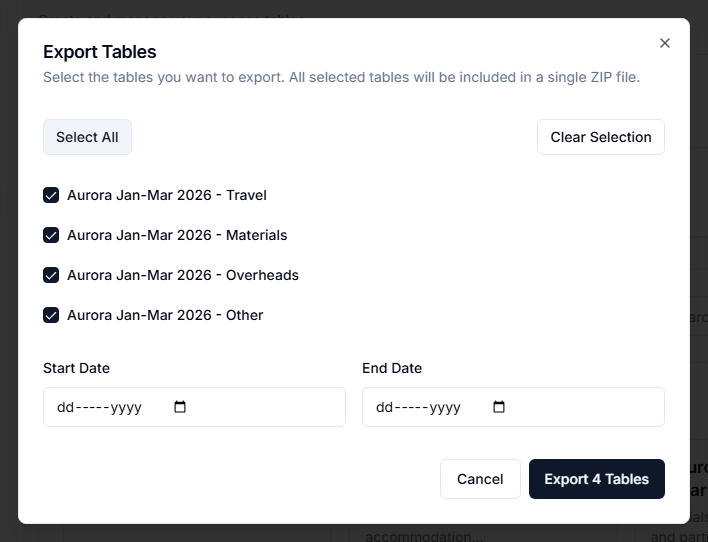
Use the Tables page export when you need a combined export for selected Tables.
Export Master Table
Use this when you need a cross-table export filtered by table, grant, purchaser, or date range.
Export a Grant
Use Export Grant on a grant's page to download every entry linked to that grant, from whichever Tables they are in. The workbook has a Table Name column and the ZIP includes the entries' evidence files. Filter by purchaser and date range, and check the preview counts before downloading. Duplicate entries are not included.
Export Personal Spending for Reimbursement
Use this when finance needs to repay people for purchases they made themselves. Open Review tools, expand the spending summary, select the Personal tab, then select Export for reimbursement. A Table exports its own entries; the Master Table exports every Table, with a Table Name column.
The export contains the same entries as the Personal tab: purchase methods containing “personal”, excluding duplicates. Filter by purchaser and date range. Before you download, the dialog shows the number of entries, people and evidence files, and the amount to reimburse.
The ZIP contains:
- a Summary sheet with one row per purchaser (entries, total paid, refunded, To reimburse, receipts missing and entries needing attention) and a total row,
- an Entries sheet listing every entry by purchaser and date, with record IDs, amounts, VAT, grant, Reimbursement Status and a link to each receipt,
- a
documentsfolder with one sub-folder of receipts and conversion evidence per purchaser.
To reimburse is the total paid minus any refund recorded against the entry. The Needs attention column flags entries with no receipt, a receipt that could not be downloaded (export again to retry), foreign-currency entries with no conversion evidence, refunds, and entries not marked as work-related. Flagged entries are still included, so check them before paying.
Reimbursement Status is copied from each entry as recorded. Exporting does not mark anything as reimbursed.
Export Reconciliation
Table and Master reconciliation outputs can be downloaded as CSV.
Export Timesheets
Use Settings > Timesheets & Exports > Timesheet Export to export formatted timesheet data by date range.
Duplicate Entries and Exports
Duplicate entries are treated as erroneous or non-final. They are not counted as normal entries in summaries and exports.