Grants
Grants is where you define each grant once — its dates, funding, people, and the paperwork that says what it covers — so the rest of GrantKeeper can work against real funder rules instead of a plain label.
Open Grants from Tools in the sidebar. The page has three parts:
- Create New Grant, which opens the grant wizard.
- Your Grants, showing every active grant as a card, with the organization's grant count, total spend, and entry count in the header. Grants that have ended or been archived are collected in a collapsible Archived & ended section underneath.
- Schedule, where grant assignments connect people to grants for a date range.
Create each grant you need before assigning expenses to it. The same grant can be selected across batches, Tables and manual entries.
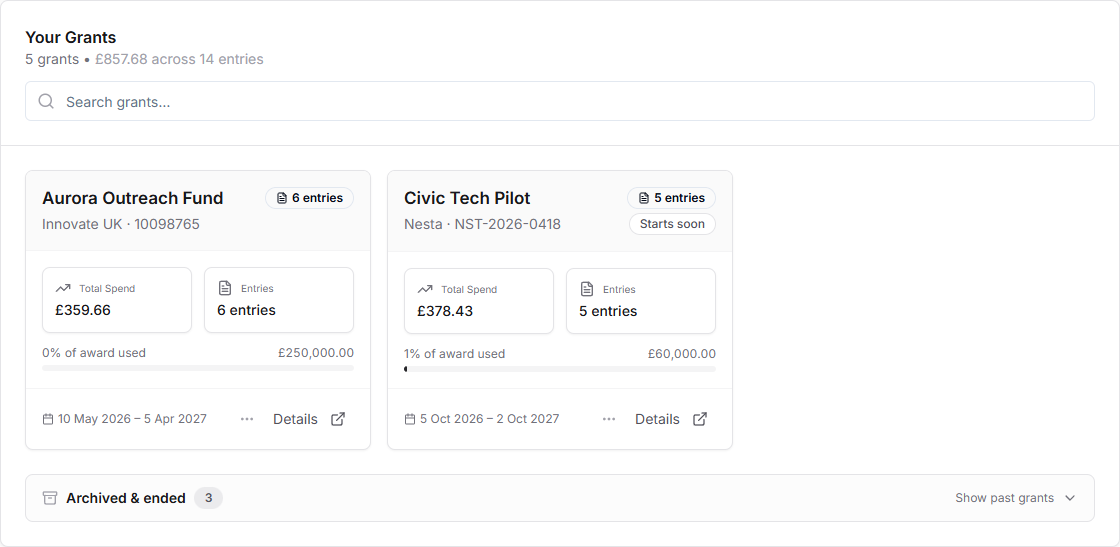
Use the search box to filter grants by name, description, funder, reference, or the people on them.
Use Filter by colour to show only the grants carrying one color flag. It works together with the search box and includes archived and ended grants. Select the color dot on a card to give that grant a different flag or a custom hex color.
Color flags are the named colors your organization offers for its grants. Select Manage colour flags at the foot of the filter menu to add, rename, recolor or delete them. Renaming or recoloring a flag updates every grant that carries it. Deleting a flag leaves those grants their color, which is then listed as a custom color.
Select any card to open that grant's page. Each card's actions menu edits, archives or deletes the grant without opening it.
In this guide
- 1The Grant PageA grant's page brings together the grant and every entry linked to it, whichever Table each entry is in.
- 2Create a GrantThe grant wizard collects the funding details, reads your award paperwork, and writes the grant description for you. It has three steps: Details, Context & rules, and Review.
- 3Grant Context and RulesThe second step is where the grant stops being a label and becomes something the AI can write against. Upload the paperwork that defines the grant, let GrantKeeper read it, then confirm what it found.
- 4Review and Save a GrantThe final step summarises everything before the grant is saved, and flags what is worth a second look.
- 5Grant Status and LifecycleEvery grant has a status derived from its dates and whether it has been archived. The status decides whether the grant can be chosen on an entry.
- 6Choose a Grant on an EntryEntries pick their grant from a dropdown of the organization's selectable grants from the grants you have defined. This keeps entries linked to a defined grant, so spend totals, rules, and AI context all line up.
- 7Edit, Archive, and Delete GrantsEach grant card has an actions menu, and the same actions are available on the grant's page.
- 8Grant AssignmentsGrant assignments connect a purchaser to a grant for a date range. They are useful for timesheets and for understanding who was working on which grant at a given time.
- 9Grant Schedule ImportThe grant schedule import is designed for a specific monthly schedule format. Treat it as a narrow importer, not a general payroll or HR import tool.