Topic 6 of 9 · Grants
Choose a Grant on an Entry
Entries pick their grant from a dropdown of the organization's selectable grants from the grants you have defined. This keeps entries linked to a defined grant, so spend totals, rules, and AI context all line up.
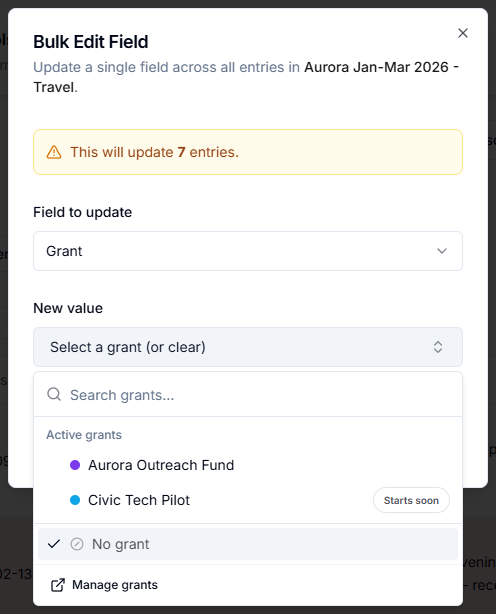
The dropdown appears everywhere a grant can be set:
- the grant column in a table's entries,
- the Edit Entry dialog,
- Bulk Edit Field, when setting the grant on many entries at once,
- Set Grant on selected table entries,
- the grant column in an import batch,
- the Edit Batch Entry dialog,
- Set Grant in a batch,
- step 4 of the manual Add Entries wizard.
Each option shows the grant's color and, for anything that is not simply Active, its status badge. Search matches the grant name, reference, and funder. Select No grant to clear the field.
Manage grants at the bottom of the dropdown opens the Grants page in a new tab.
Values That Are No Longer Active
An entry can hold a grant name that is not in the dropdown — an unrecognised grant name, or a grant that has ended or been archived.
GrantKeeper keeps that value rather than dropping it. The field shows an amber warning triangle, and the dropdown lists the stored name under Current value with a Not active badge. Leave it alone to preserve the historical record, or pick a current grant to replace it.
If the dropdown is empty, the organization has no selectable grants. Create one on the Grants page, or check that an existing grant's dates have not passed.