Topic 3 of 9 · Grants
Grant Context and Rules
The second step is where the grant stops being a label and becomes something the AI can write against. Upload the paperwork that defines the grant, let GrantKeeper read it, then confirm what it found.
Upload Grant Context
Drop files onto the upload area or select Choose files. Upload the award letter, grant agreement, terms and conditions, scope of work, and budget — everything that defines what this grant covers. The more you provide, the more accurate the expense descriptions it produces.
Accepted formats are PDFs, images (PNG, JPG, HEIC, GIF, WebP), and text files (TXT, MD, CSV, JSON, and similar), up to 32MB each and 25 files per grant. Files GrantKeeper cannot read are rejected before they are uploaded, with the reason shown.
Grant context documents are stored against the grant only. They do not appear in the Documents library and are never treated as receipt evidence.
Extra Notes
Use the notes box for anything not in the documents: internal conventions, wording the funder expects, or the cost headings you use.
Analyse the Context
Select Analyse context to read every uploaded document. GrantKeeper writes the grant description, produces a grant brief, and drafts an answer for each rule in the checklist.
The analysis also runs automatically when you move to the Review step if anything has changed since the last run. Select Re-analyse to run it again after adding documents or editing notes.
Two things can come back with the results:
- Some files could not be read. The listed files were skipped. Re-upload them in a supported format, or capture what they say in the notes box.
- What the documents don't cover. Gaps the AI could not answer from the paperwork you provided. Fill these in yourself, or upload the document that covers them.
Grant Brief
The grant brief is what the AI reads whenever it writes or reviews a description for an entry on this grant. It is generated by the analysis, and you can edit it freely — what you save is what gets used.
If the brief is empty, the app can still use the grant's notes, description and confirmed rules. Capture enough context to explain the project and review the generated wording.
Rules Checklist
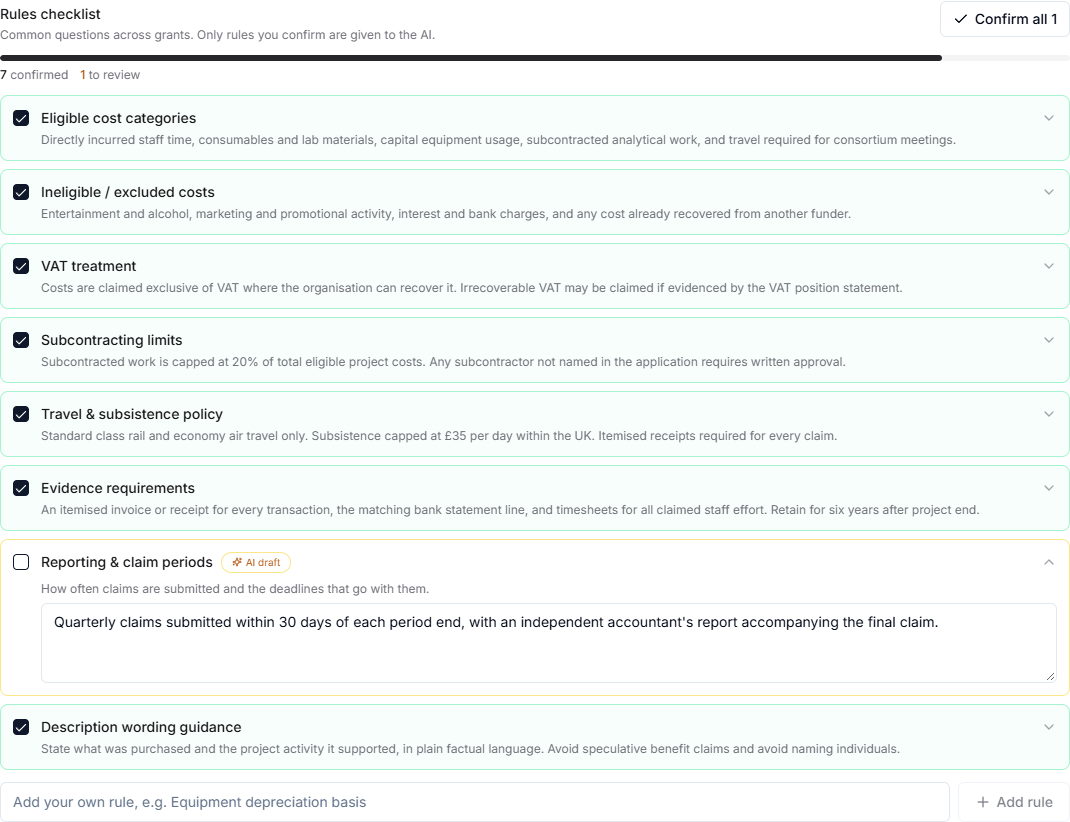
The checklist covers the questions most funders answer:
- eligible cost categories,
- ineligible or excluded costs,
- VAT treatment,
- subcontracting limits,
- travel and subsistence policy,
- evidence requirements,
- reporting and claim periods,
- description wording guidance.
The analysis drafts an answer for each rule it can find in your documents. Drafted answers are marked as needing review and open automatically so you can read them.
Only rules you confirm are given to the AI. Tick a rule to confirm it, or use Confirm all to accept every drafted answer at once. A rule with no answer cannot be confirmed. The progress bar shows how many rules are confirmed, how many are waiting for review, and how many have not been captured.
You can edit any answer before confirming it, and add your own rules at the bottom of the checklist for anything the standard list does not cover.