Topic 1 of 6 · Settings
Organisation
The Organisation section shows who the organization is and who is in it. Everyone can open it, but only admins can change anything.
Use Organisation settings in the sidebar to open this section. It is the main place to manage your team. Advanced organisation management below the cards retains Clerk's additional controls for verified domains, membership requests, custom roles and leaving the organisation, where enabled. Close advanced controls to refresh the cards after making changes.
Deleting an organisation in advanced controls removes team access but does not cancel the GrantKeeper subscription or delete stored records and documents. Manage the subscription and arrange data retention before deleting. Changing the slug also changes the mail-in upload address; use the details card for its address-change warning.
| Capability | Admin | Member |
|---|---|---|
| View organisation details and stats | Yes | Yes |
| View the member list and roles | Yes | Yes |
| Rename the organisation or change slug | Yes | No |
| Upload or remove the organisation logo | Yes | No |
| Invite people and revoke invitations | Yes | No |
| Change a member's role or remove them | Yes | No |
| See pending invitations | Yes | No |
| Manage member access and view audit history | Yes | No |
Organisation Details
The details card shows the organisation logo, name, URL slug, creation date, member count, subscription plan, and counts of tables, entries, documents, import batches, and grants.
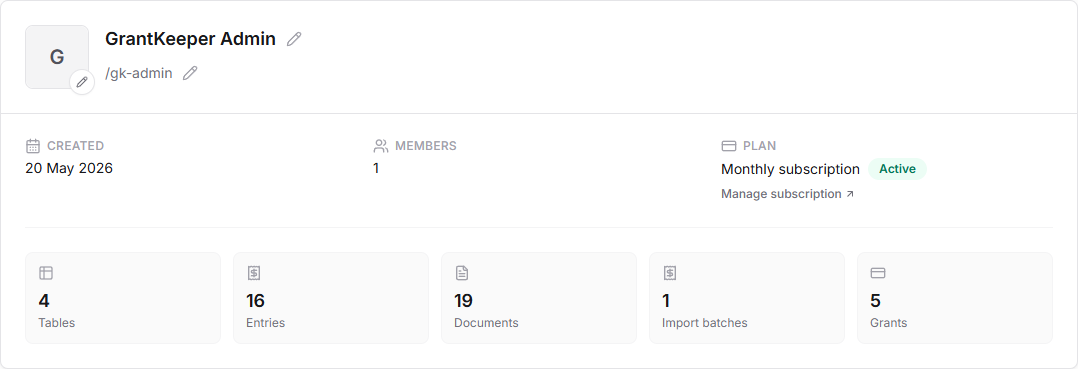
Admins edit the name and the slug in place. A small pencil icon sits next to each one:
- Select the pencil next to the organisation name or the slug.
- Edit the value. Press Enter to save or Escape to cancel.
- Confirm the change in the popup that appears.
Only one field is edited at a time, and nothing is saved until you confirm. If a value is rejected (for example, a slug that is already taken), the editor stays open with the reason shown so you can correct it.
- Organisation name. The display name used across GrantKeeper and on exports.
- URL slug. Lowercase letters, numbers, and single dashes only, 3 to 48 characters.
The slug is not cosmetic. Your mail-in upload address is upload+<slug>@upload.grantkeeper.com. Changing the slug changes that address, and email sent to the old address stops being processed. The confirmation popup spells out the old and new addresses before you commit. Update any mailbox forwarding rules when you change the slug.
Organisation Logo
Select the pencil badge on the organisation avatar to upload, replace, or remove the logo.
- Upload or change. Pick a PNG, JPEG, WebP, or GIF up to 2MB. A popup shows the current logo next to the new one before anything is saved.
- Remove. Confirm in the popup. The organisation falls back to a lettered avatar and you can upload a new logo later.
Files that are the wrong type or too large are rejected before the confirmation step.
Members
Each member row shows their name, email address, role, workspace access and whether they have a matching purchaser profile. Join dates appear on wider screens.

You always appear first in the list, marked with a "You" badge. Admins come next, then everyone else alphabetically. Searching the list filters it without changing that order, so you drop out of the results if your own details do not match what you typed.
Admins can:
- Change a role using the role dropdown. Admins can manage the organisation; members can view and manage their enabled areas but cannot administer the organisation.
- Add a member as a purchaser from the row menu. If a purchaser already exists with the same name, the member's email is added to that existing profile instead of creating a second one.
- Remove a member from the row menu. The person immediately loses access. Everything they uploaded or created stays in the organisation, and their purchaser profile is not deleted. They can be invited back later.
Two rules are always enforced:
- You cannot change your own role or remove yourself. Ask another admin.
- The last remaining admin cannot be demoted or removed, so an organisation can never be left without an admin.
Manage Member Access
Admins can choose which areas a member can use:
- Open Settings > Organisation > Members.
- Select Manage access on the member's row. This button is available for other members; admins already have full access.
- Enable or disable Grants, Tables, Documents, Statements and Timesheets.
- Select Save access.
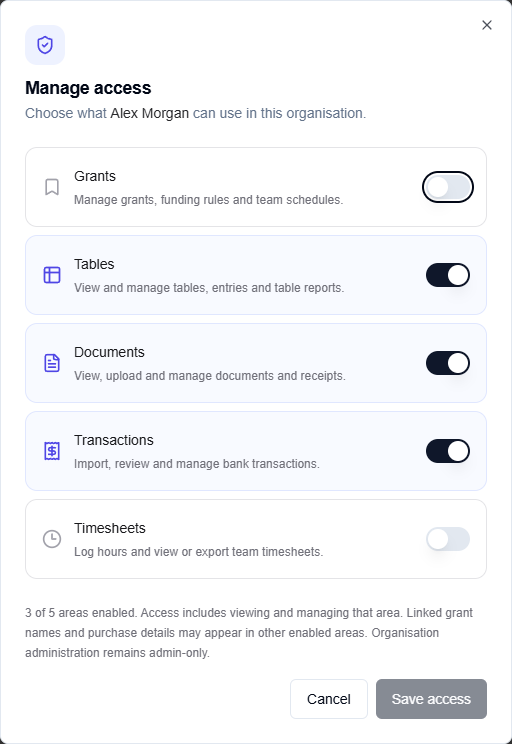
Access includes viewing and managing an area; these switches are not read-only roles or permissions on individual records. Admins have full access. Linked grant names and purchase details can still appear in other enabled areas. If a page or action is unavailable, ask an organisation admin to check your access. Previewing or selecting library documents also requires Documents access.
Invite People
- Open Settings.
- Find Organisation, then Members.
- Select Invite people.
- Enter one or more email addresses, separated by commas, spaces, or new lines (up to 20 at a time).
- Choose the role for everyone in that batch.
- Send.
Each address is invited individually, so one bad address does not block the rest. Addresses that fail are listed with a reason, such as already a member or already invited, and are kept in the box so you can correct them.
Pending Invitations
The pending invitations card lists people who have been invited but have not joined yet, with the role they were invited as, the date sent, and when the invitation expires. Select Revoke to cancel an invitation. This card is visible to admins only.
Invitation emails open a sign-in and acceptance page. If an invitation link does not work, ask an admin to revoke it and send a fresh invitation.
Switching Organisation
If you belong to more than one organization, use the organization switcher to move between them. GrantKeeper reloads the current page with the new organization's data, so you do not need to refresh manually.
Most screens stay where they are and simply re-load. Screens showing one specific record cannot survive the switch, because that record belongs to the organization you just left. Those send you to the matching list instead:
| Screen you were on | Where you land after switching |
|---|---|
| A single Table | Tables |
| An import batch | Statements |
| A single entry | Dashboard |
| Editing a grant | Grants |
Accepting an invitation to another organization switches you into it the same way.