Topic 12 of 12 · Review an Import Batch
Save to Tables
Use Save to Tables when the batch is ready.
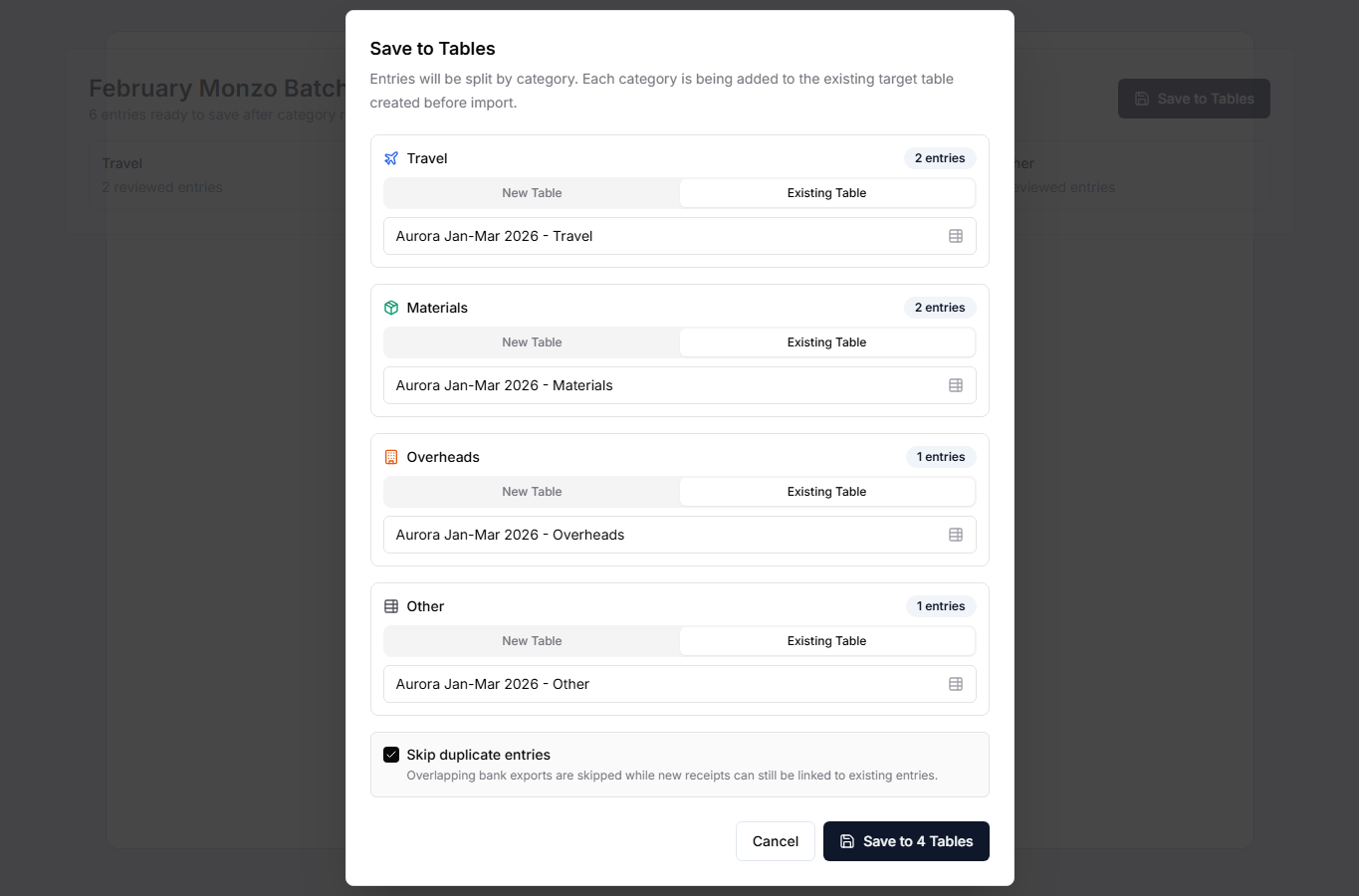
You can:
- create one new table,
- add entries to an existing table,
- split entries into category-specific tables,
- skip duplicates when saving to an existing table.
The preferred path is category-based saving into existing Tables. Select Existing Table for Travel, Materials, Overheads, and Other, then choose the Tables you created for the grant and period. Skip duplicate entries is enabled by default for existing Tables so overlapping transactions are skipped while newly found receipt evidence can still be linked.
You can select destination Tables from different table groups in the same save, including during statement re-upload. Existing group memberships are preserved. When multiple groups are involved, ungrouped existing Tables stay ungrouped and newly created Tables form a separate group. Duplicate checking in the batch Save to Tables dialog checks each selected destination Table, rather than every Table in the organisation.
After saving, the batch is removed and its entries and evidence become saved Table records. Finish receipt review before saving where possible.